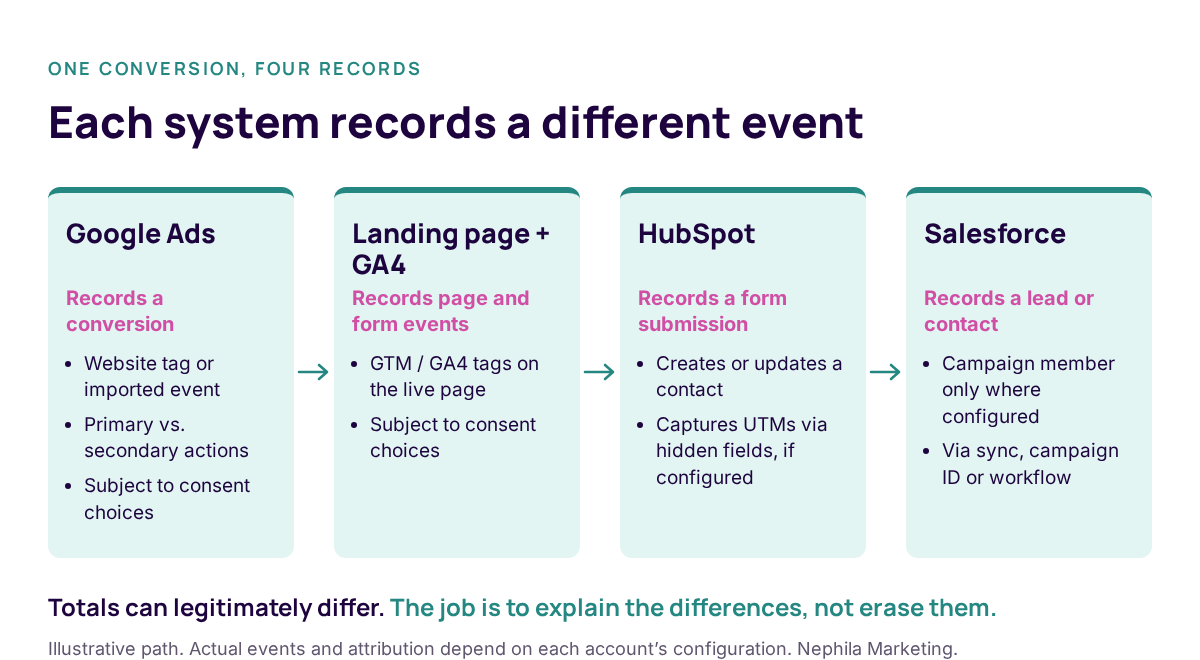
When the lead numbers in HubSpot don’t match what Google Ads is reporting, and Salesforce is showing something different again, I don’t start by changing the dashboard. I start by looking at what’s behind each number. What exactly is each platform counting? What triggered the conversion? Did it result in a form submission, a new contact, or a Salesforce campaign member? Those are different things, and understanding the difference is usually where the troubleshooting begins.
Google Ads, GA4, HubSpot, and Salesforce each see a different part of the journey. You shouldn’t expect their totals to match perfectly. You should be able to explain the differences. These are the ten checks I’d make before relying on the report.
1. Check the live site, not just the tag plan
Open the production pages and test them. Confirm the intended GTM container and GA4 tags are present. Submit a test form, follow the redirect, and check the resulting events. Look for a tag firing twice, an event firing on page load instead of submission, or a thank-you page that never loads.
2. Test what happens when consent is declined
Run the same journey with consent accepted and declined. Verify that the consent management platform and Google Consent Mode behave as configured for the visitor’s choices and applicable requirements. A tag appearing in a debugging tool doesn’t prove the resulting collection behavior is correct.
3. Write down what “conversion” means
Is it a form submit? A demo request? A booked meeting? An MQL? List each event, the system that records it, and who owns the definition. Also identify which events are used for ad optimization. Otherwise two people can use the word “lead” and mean different things.
4. Check which conversions Google Ads is optimizing toward
Review conversion sources, primary and secondary actions, counting settings, and campaign goals. Watch for the same form completion counted through both a website tag and an imported event, most often a GA4 key event imported alongside the Google Ads tag, or an offline conversion imported from the CRM. A higher conversion total isn’t useful if it includes duplicate signals or low-value actions.
5. Submit a real test form and inspect the HubSpot record
Don’t stop at seeing UTMs in the browser address bar. Check whether the required parameters, hidden fields, and identifiers were actually captured and retained. Test embedded forms and redirects. Then inspect the contact record and any workflows that use those values. Use a new email address in a fresh browser session.
6. Make sure campaign names can be grouped consistently
Choose standard values for source, medium, campaign, and content. Document case, separators, and any custom identifiers. GA4 treats UTM values as case-sensitive, so “LinkedIn” and “linkedin” show up as separate sources. If one campaign is labeled “NorthAmerica” and another “NA”, somebody will eventually have to repair that in reporting. Naming conventions are part of the data model.
7. Follow one conversion all the way to the CRM
Click a test link, complete the form, check the HubSpot activity, and confirm the intended Salesforce campaign association where applicable. Work with the Salesforce administrator on the actual attribution method—UTMs, campaign IDs, workflows, or another configured process. A campaign name by itself does not create a Salesforce campaign member.
8. Reconcile differences; don’t erase them
Compare the same date range, time zone, event definition, and level of detail. Google Ads credits a conversion to the date of the ad click, while GA4 and HubSpot record the date of the submission, so the same week can show different totals. Then document differences caused by attribution windows, modeled conversions, identity, consent, or how each platform counts activity. A discrepancy is a question to investigate, not a reason to make the totals identical.
9. Check what happens after the lead arrives
Review lifecycle stage definitions and the workflows or integrations that update them. Does an MQL mean the same thing across regions? Does a meeting booked in one system update the contact correctly in another? Without consistent rules, a qualified-lead trend can reflect process changes rather than campaign performance.
10. Label the dashboard with the actual metric
Use “Google Ads conversions” when that’s what the number represents, and “GA4 key events” for GA4. Use “form submissions” for submission events, and “new contacts” only when you’ve deduplicated contacts appropriately. Keep MQLs, meetings, opportunities, and pipeline separate. Include the source system so someone can trace the number.
A checklist to run before reporting
☐ Production GTM and GA4 tags verified; no unintended duplicate firing.
☐ Consent states and Consent Mode behavior tested.
☐ Conversion definitions and owners documented.
☐ Google Ads primary/secondary actions and duplicate counting reviewed.
☐ HubSpot forms and attribution fields tested.
☐ UTM values and campaign naming standardized.
☐ End-to-end conversion and CRM campaign association tested.
☐ Expected differences among Ads, GA4, HubSpot, and Salesforce documented.
☐ Lifecycle stages and qualification rules validated.
☐ Dashboard labels distinguish conversions, leads, qualified leads, meetings, and pipeline.
If a number fails one of these checks
Trace it back. Identify the event or field, reproduce the issue, note the affected date range, assign an owner, and retest after the fix. Don’t silently change a dashboard formula until it looks right. Some historical data can be repaired; some gaps can’t be recovered, and the report should say so.
The point isn’t to get four platforms to show the same number. It’s to know what each number means—and whether it’s reliable enough to make a decision.
At Nephila, checks like these are part of how we run campaigns as an embedded demand generation team for B2B technology companies, alongside your marketing operations and sales teams.